1. Processor (CPU) - Speed (GHz)
 The i7 processor is currently one of the most powerful processors around. The processor helps the system run as fast and as smooth as possible. It is the part of the computer that processes every piece of data and every single thing that happens while the computer is running, such as; move curser, click on this, etc. The processor of the computer is known as the brain of the computer.
2. RAM - Size (MB-GB-TB)
 RAM (Random Access Memory) helps all applications run as smooth as possible to maximize the use of that application. The RAM could be compared to a human's conscious memory. The RAM is only in use while the computer is running, but as soon as the system shuts down it wipes everything from its memory unlike the hard drive which saves everything even when the system is not operating.
3. Motherboard - Connectivity (CPU/Connections)
 The motherboard is what connects everything together in the PC using electrical circuits. The job of the motherboard is to relay information through the computer. The speed of the motherboard will NOT add to the speed of your computer, but it is a vital part to a computer, so you need a reliable one. The motherboard can be reffered to as the 'nervous system' of a computer.
4. Hard Drive - Size (GB/TB)
 The hard drive on a computer is where everything is saved to. Once something is saved to the hard drive it will stay there until it is removed. The size of a hard drive is usually measured in GB's and TB's. The hard drive can be compared with a human's sub-conscious memory. A hard drive always needs two connections; one for power and one for data transfer.
5. Graphics Card - Size/Speed (RAM/GPU)
 The graphics card determines the resolution and anything visual on your computer. A graphics card processes and renders any images on display.The graphics card has RAM and GPU (Graphics Processing Unit) in it, the more the RAM and GPU has the better it is and the smoother applications such as games will run.
6. Power Supply Unit (PSU) - AC-DC
 The power supply unit (PSU) Gives out power to the components of your computer. It also lowers the voltage to the motherboard so it wont over heat and blow up. All the power is then distributed out to everything that needs power in the computer and everything connected to the motherboard.
7. BIOS (Basic Input Output System)
 The BIOS is the very first thing that shows when you load up your computer. It's job is to boot up the operating system. When you load up your computer, the BIOS performs a power on self-test (POST), this helps determine that everything is working properly. If the BIOS did not perform a POST the system could become damaged very quickly as the system would not know if it was not functioning properly and wouldn't be able to take care of itself.
8. System Box
 A computer is perfectly capable of performing without a system box. The system box is there to protect everything inside. It can also help keep the parts cool, because of the air flow inside the box. It allows the cold air to stay inside the box to keep all the parts cool. It is also used for user safety. It helps stop electric shocks and the build up of static electricity.
9. Operating System
 A computer would be useless without an operating system. The things an operating system does for the computer are:
. Creates a user interface (GUI, CLI)
. Application management
. Hardware Management (Peripheral)
. Device driver
. Manage resources
. File management
. Security
. Customization
There are different types of operating systems, some different operating systems do not work with different computers. For example, MAC OS would not work if it is not in a MAC computer because the hardware's will not match.
The main three types of operating systems are; Windows, MAC OS, Linux.
Linux is an open source operating system. This means that anybody can view the code and create their own version of the operating system for free.
Windows is a proprietary operating system which means the code is secret and it costs money to have it installed.
10. Storage
. Magnetic Storage (Floppy Discs)
. SSD (Solid State Disk) (Hard drives, USB sticks)
. Optical Storage (CD, DVD, Blu-Ray) (Laser)
11. Utilities - Maintenance
. Disc defrag - Organizes files in colours. Over time, fragmentation will happen to the file. when you open it, it is being recovered from lots of different locations. After the file has been fragmented, the defragmentation puts all the files back in to order.

. Disk clean up - Deletes: Temp files (generated by the system), Temp internet files (cookies, cache).

. Formatting - File systems. Getting a drive ready for update
. Back up - Making a copy of your files online or on another hard drive/device.
A number of techniques can be used to maintain your computer and should be done regularly.
12. Connection Types
. PATA(IDE)
 , SATA
  , SCSI
 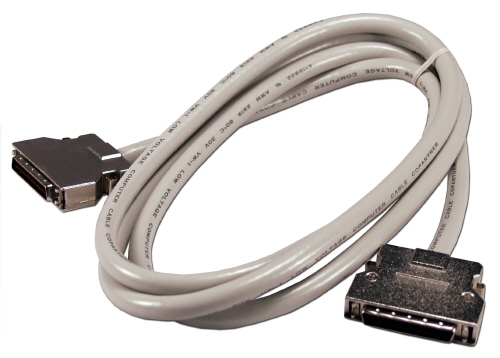 - Internal
. USB
 , eSATA
  , FileWire
  - External
Business Scenario:
Magellan Map company moving to Solihull. Three web page designers, three map designers and a marketing team of two. The have old computers -
. Intel Celeron 1.6 GHz Socket 479 Processor
. So, Keep them, upgrade them, or bin them and get some completely new ones?
Bin them and get some completely new ones. This is because the designers need good computers to run their software fast on their computer. The marketing team will get the same computers as the designers, this is because you can buy them all as a bulk so it will be cheaper. Also, you can get the same warranty on all of them, and if one of them breaks, they will have no problem using each others computer

No comments:
Post a Comment